
Due to the coronavirus outbreak, many companies and organizations now have their employees working from home. As a result, many of them adopted the Zoom app for their meetings.
Zoom’s use surged during the Covid-19 pandemic. Anyone who wanted to use the app just needed to download Zoom to their mobile phone or computer to start or join a Zoom meeting. Now, you can even use the Zoom app on FireStick for web conferencing by downloading it to the device. In other words, you can now use your TV for your Zoom meeting.
If you’re among those who only use their Amazon FireStick to watch media content, you’re really underutilizing it. That little device has expanded functionalities that can simplify your life. With your Amazon Fire Stick, you can conduct or join Zoom meetings no matter where you are in the world.
In this article, we’ll share everything you need to know including the installation process and techniques to using the Zoom app with your Amazon FireStick and your TV.
What Is Zoom?
Contents
Zoom comes as both a free version and a paid version. While the former allows for hosting meetings with up to 100 participants, the latter offers more functionalities. For example, the paid version allows you to record your Zoom cloud meetings while the free version doesn’t. The app works on all iOS and Android devices as well as Mac and Windows computers.
Note:
Keep in mind that you can only use one device to cast Zoom meeting.If you’ve been skeptical about using Zoom due to their past privacy and security issues, there’s no need to worry. The problems were fixed by the developed and they release updates from time to time to fix any new issues.
Zoom Subscription Plans
There are five subscription plans for Zoom users:
Installing Zoom on Amazon FireStick
There are two ways to download and install the Zoom cloud meeting app on your Fire TV stick. You can download it through the Amazon Fire Stick or you can get it through the Amazon website. If you’re ready to cast Zoom meeting or join a meeting, here are the steps you need to get started:
Downloading the Zoom App Through the FireStick
Step 1: Click the Search icon on the Fire Stick home screen.
Step 2: Type “Zoom Meeting” on the keypad and press OK.
Step 3: Locate the Zoom Cloud Meeting app and click on it.
Step 4: Once the screen opens, locate the Get Application button under the app and click it.
Step 5: Allow the app to download and install.
Step 6: After installation, click Open to start using Zoom on your FireStick and TV.
Downloading the Zoom App Through the Amazon Website
If you don’t want to download and install the Zoom meeting app through your FireStick, you can get it through the Amazon website. You’ll need to use your smartphone or computer to do this.
Step 1: Go to the Amazon website.
Step 2: Log into the account associated with your Fire Stick.
Step 3: In the search bar, type “Zoom Cloud Meetings.”
Step 4: Press Enter.
Step 5: Select the Zoom Cloud Meetings app.
Step 6: Click on Get Application.
Step 7: Select the FireStick device where you want to install the Zoom app and click on it.
Step 8: Wait for the app to install and then open it.
How to Download Zoom on FireStick Through Downloader
As always, make sure that if you have connected your FireStick with a TV, that TV has a camera.
Step 1: Go to Settings

Step 2: Click My Fire TV

Step 3: Click Developer Options

Step 4: Enable Apps From Unknown Sources

Step 5: Go to Home Screen

Step 6: Click on the Magnifying Glass

Step 7: Type Downloader
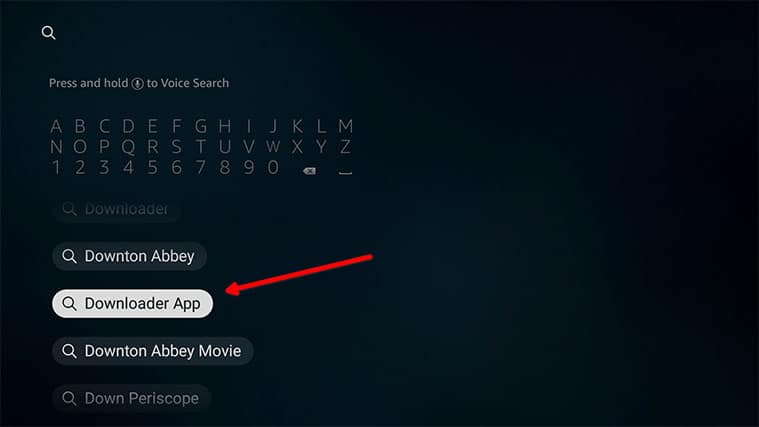
Step 8: Install Downloader

Step 9: Launch Downloader
Step 10: Click on Browser

Step 11: Go to official Zoom Download Page
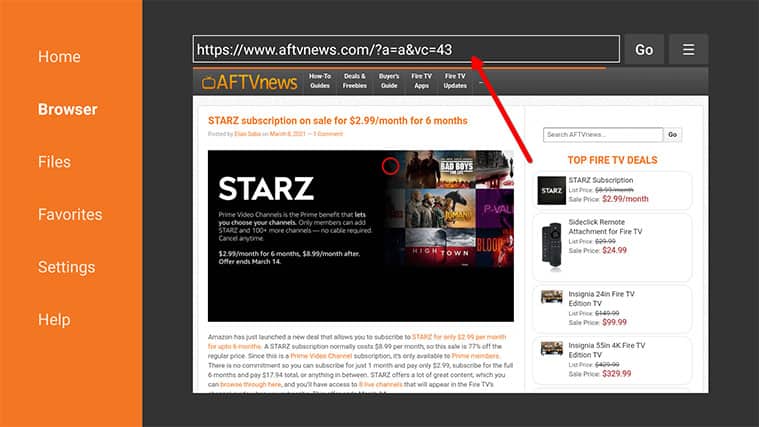

Step 12: Click on Download

Step 13: Allow Downloader to Finish Installation
Step 14: Click on Finish

How To Use Zoom on Your FireStick
Installing Zoom on your FireStick helps you conduct your meetings with many people using your Fire TV stick. Once you’ve finished installing the Zoom meetings app on your Fire TV stick, do the following:
Step 1: Launch Zoom on the Fire TV stick.
Step 2: Many options will appear, such as New Meeting, Join, Share Screen, Calendar, etc. If you’re planning to host a meeting, click the New Meeting option.
Step 3: Click on Participants to invite people to the cloud meeting. If you’re a participant and not a host, click on Join.
Step 4: Enter your Meeting ID to proceed to the Zoom meeting on your Fire Stick.
How Do I Cast Zoom on My FireStick?
Step 1: Set up the Zoom meeting.
Visit the Zoom website and sign up or login if you already have an account. Then, choose either Join a Meeting or Host a Meeting depending on what you want to do. If you’re hosting a meeting, click on it and choose the options you need. Afterward, set up the Zoom client and invite the participants.
Step 2: Set up your Amazon FireStick and your TV.
Plug your Amazon FireStick into the TV. Make sure you connect your FireStick and computer to the Wi-Fi network you’re using. Press and hold the Home button on the Fire Stick remote. Then select the mirroring option from the options that appear.
Step 3: Set up Windows 10 to mirror the app to your TV.
Locate the Notifications icon on the computer where you’re running Windows 10. Click the Connect icon. Once your FireStick is displayed, click on it to connect it to your computer. If you want to stop and leave or end the meeting, you can either press the Home button or another button on the TV remote of your FireStick.
FAQs
Final Words
In the time of the coronavirus, Zoom meetings are the way to go. Instead of exposing yourself to the virus, stay in the comfort of your home and conduct business through cloud meetings.
With Zoom, you don’t need to meet your employees or co-workers which can help keep everyone safe.
Therefore, installing the Zoom cloud meetings app on your Fire Stick or Fire TV is a wise move. It can enable you to use your smart TV for Zoom meetings either as a host or participant. The steps we shared above are simple, easy and straightforward. You should have no problem using them to get Zoom working on your TV through your FireStick.
