
To protect your privacy and data in the online world, you need a VPN on all devices that have an internet connection. Since Amazon FireStick operates through an internet connection, you should get a VPN to make sure your data is safe and hidden while you’re streaming your favorite content.
NordVPN is the best service for the job, not just on FireStick but also on any other device. This VPN makes use of state-of-the-art encryption to lock your data so that no third-party can access it.
NordVPN also unblocks streaming services like US Netflix, Hulu and other sites. The app comes with useful features such as double VPN, auto-connect, VPN connections on multiple devices, and more.

Apart from FireStick, NordVPN can protect other internet-enabled devices and video game consoles, smart TV sets, routers, tablets and mobile devices.
This guide will take a look at how to download/install NordVPN on your FireStick device as quickly as possible. We’ll also show you how to use NordVPN once it’s installed on your device. Let’s get into it:Contents
How To Download and Install NordVPN on FireStick
Step 1: Go To the Amazon App Store and Download NordVPN
The official Amazon App Store on your FireTV device is the best place to get the official NordVPN app. To do that, you will first have to take your FireStick device and plug it directly into the HDMI port, which should be present somewhere on the back of your TV set or monitor. Depending on the model of your FireStick, you may also have to provide it with power via a USB cable and a wall charger.
With that done, go to the homescreen and click on the icon in the top-left corner of the screen in the shape of a magnifying glass. This should open up a search bar. Type NordVPN into the box.
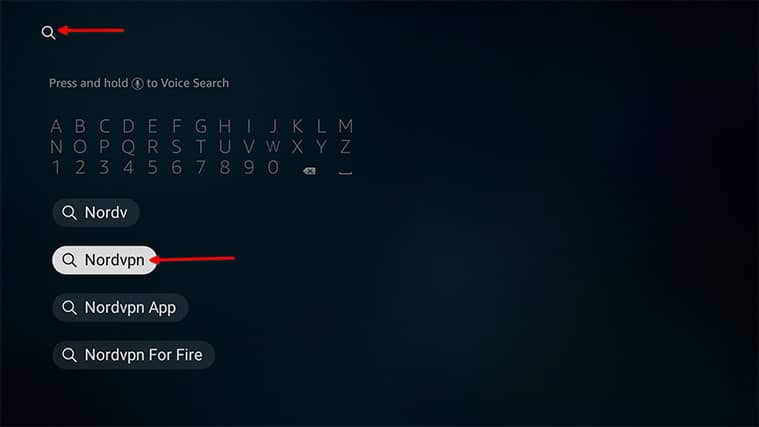
Step 2: From the Shown List, Click on NordVPN
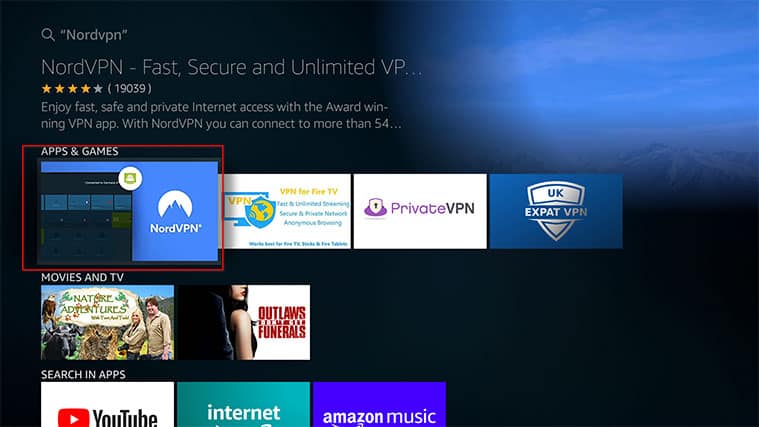
Step 3: Click ‘Get’
Step 4: Run the NordVPN App and Input Your Login Credentials
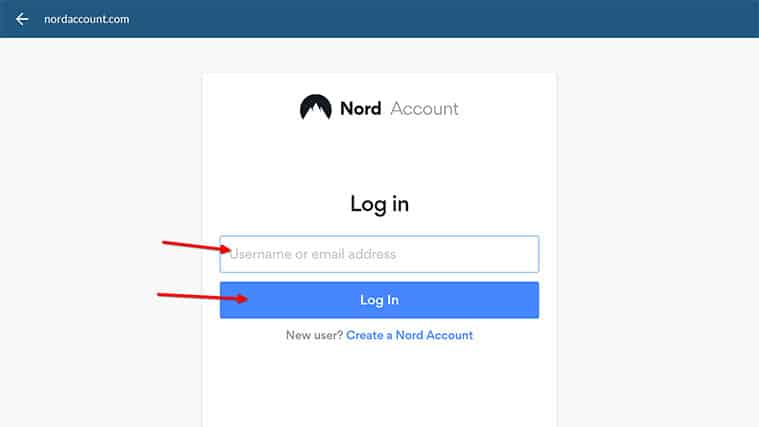
Now, launch the NordVPN app on your FireStick device and proceed to input your username and password that you created when you signed up for NordVPN in the fields shown.
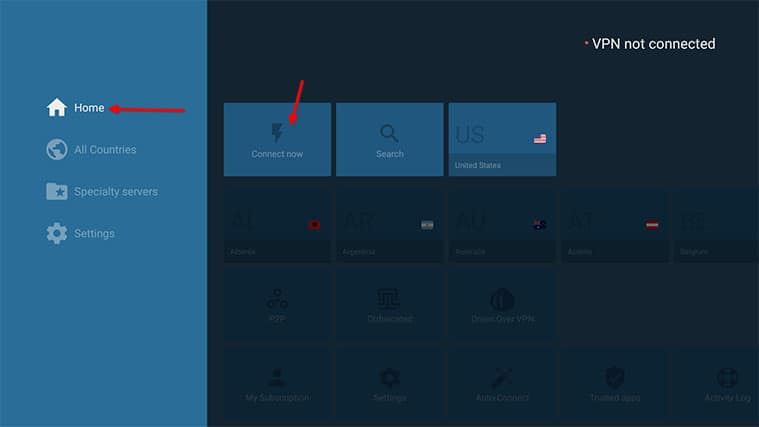
Step 5: Connect To a Server
This can be any server listed on the NordVPN interface. Generally speaking, though, you will want to connect to a NordVPN server that is close to you and, at the same time, unlocks everything that you want it to unlock, such as streaming services.
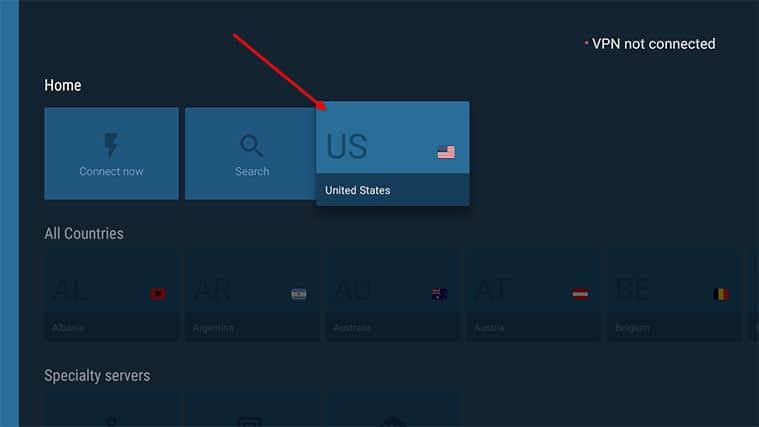
For example, to unblock BBC iPlayer, you will have to connect to a NordVPN server located in the United Kingdom. Or, if you want to unblock US Netflix, you’ll choose the United States as the location of your server on NordVPN.
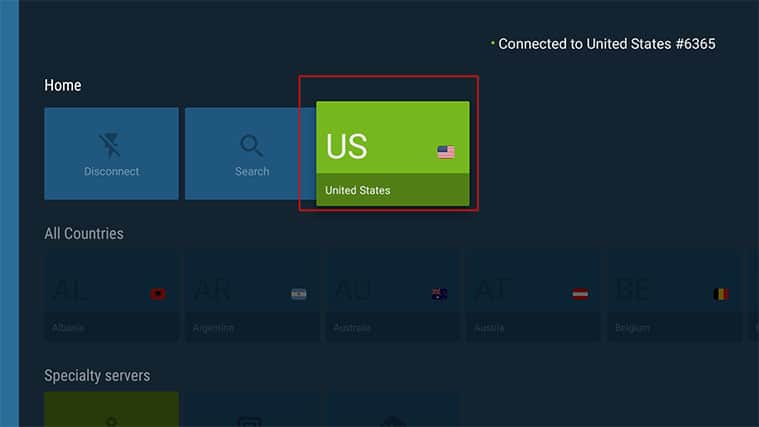
Similarly, if you just want security, you’ll probably want to connect to a server that is located in a country with the least amount of surveillance programs and international alliances.
Step 6: Stream Content
And that’s it. To recap, download NordVPN on FireStick, connect to a server to unblock content and secure yourself, then stream content as you would regularly. The process is as simple as that.
How To Install NordVPN on FireStick Manually
Even though the process outlined above is the main way to get NordVPN on FireStick, it might not work for you depending on your device. In that case, follow the steps below to download and install NordVPN on FireStick (without Android phone).
Step 1: Go To Settings
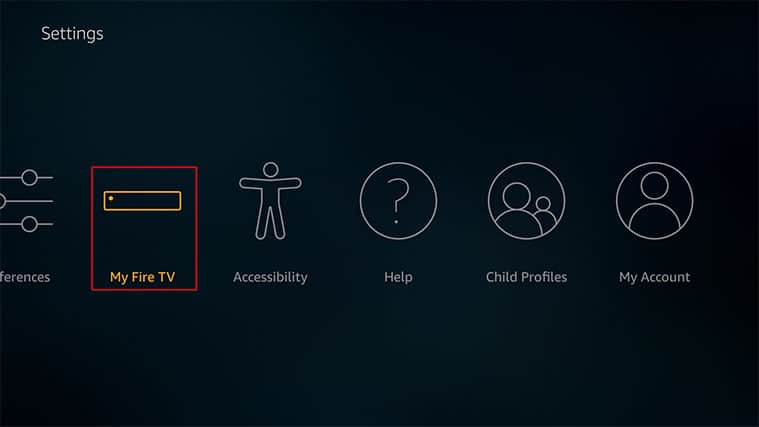
To get started installing NordVPN on FireStick manually, you first have to access the Settings menu from the homescreen of your FireStick.

Step 2: Click on Device
Once in Settings, you will need to scroll a little bit to the right side of the screen to finally see the option that says ‘Device/My Fire TV.’
Step 3: Click on ‘Developer Options’
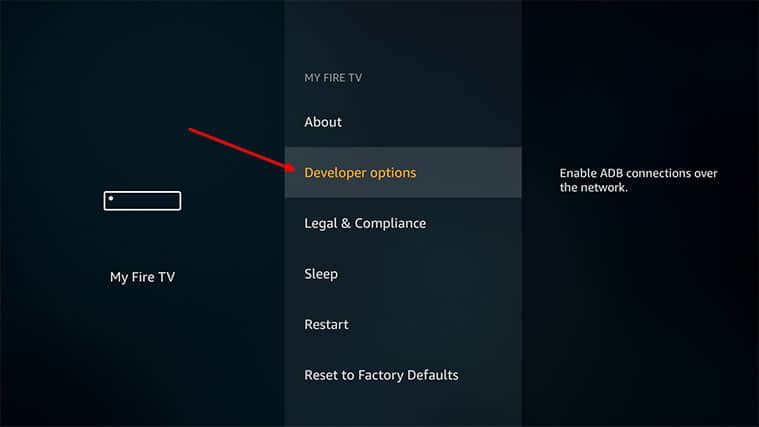
Once you have accessed the Device menu, you should see another option called ‘Developer Options.’ Click on it.
Step 4: Click on Apps From Unknown Sources
Click on ‘Apps From Unknown Sources’ and move the toggle to ON.

This is important:
If you’re wondering whether this is a safe step or not, you should know that it is generally safe—but only if you know that the app you are about to install on your FireStick is legitimate and doesn’t contain malware. Since you’re here to learn how to install NordVPN on FireStick, you know that you’re installing a safe and legitimate app—and that is NordVPN.As we mentioned above, the best and easiest way to install NordVPN on FireStick is through the Amazon App Store, but sometimes that is not possible. Now, since you will be installing NordVPN on FireStick from a different source, you will need to tell your device to accept the NordVPN app from an “unknown” source, even though the source isn’t really unknown, as you will soon find out in the next couple of steps.
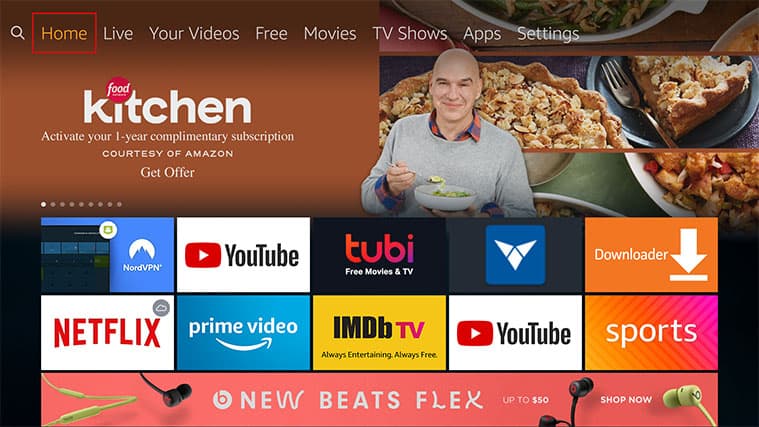
Find the search button in the top-left corner of your FireStick homescreen and click on it.
Step 6: Search ‘Downloader’
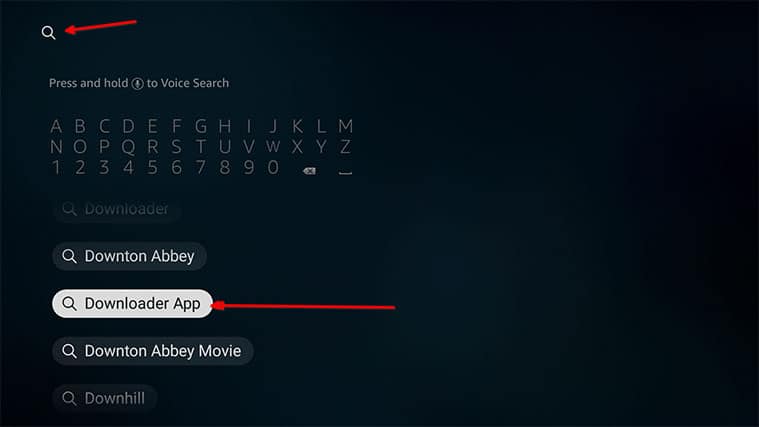
To install NordVPN on FireStick without the Amazon App Store, you need to first install another app called Downloader. Use the FireStick search button to search for the Downloader app. Install it once you’ve found the listing.
Downloader is a very reputable app, and you can check that for yourself by looking at the number of ratings it has on Amazon AppStore.
Step 7: Use Downloader To Install NordVPN on FireStick
The Downloader app comes with a browser of its own. Use that browser to navigate to the NordVPN website. More specifically, you need to access the downloads page.
Once there, you need to download the file for the Android system, since FireStick is built on a proprietary version of vanilla Android. The NordVPN download.apk file is the one you need to click on so that the Downloader app can pick it up and begin the installation process.

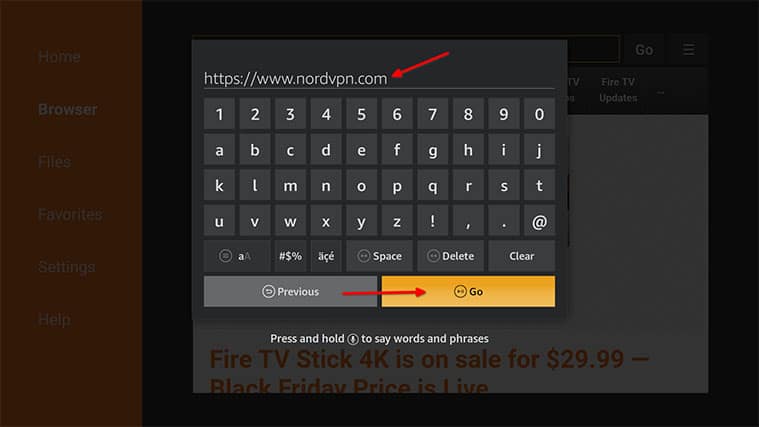
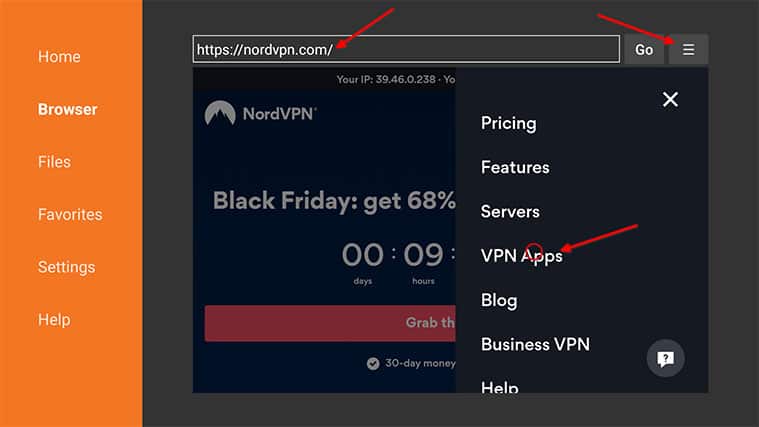
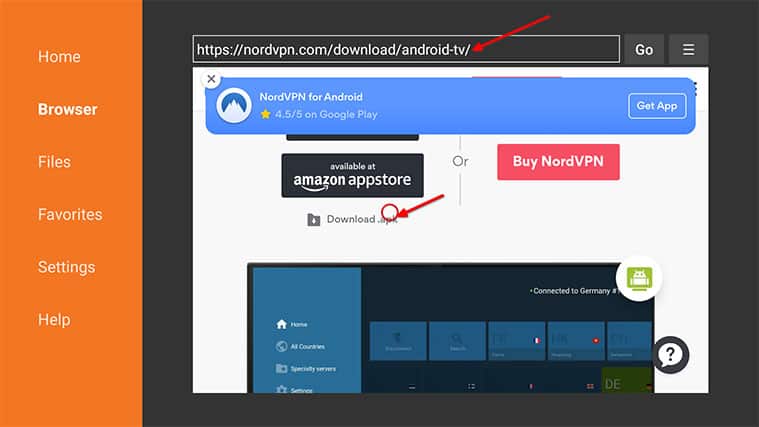
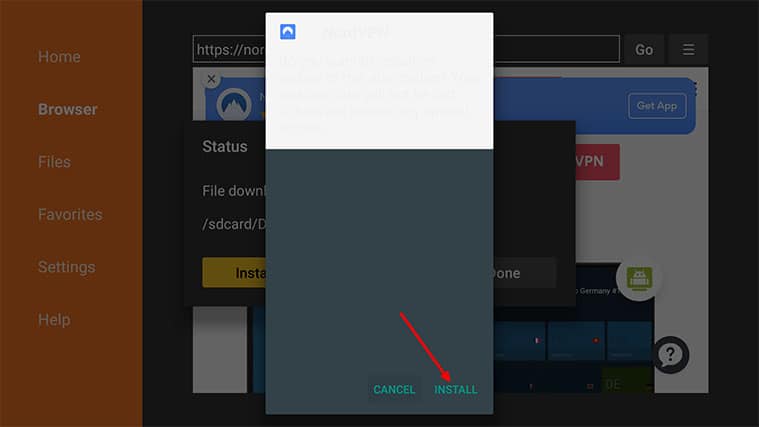
Once the Downloader app has finished downloading and installing the NordVPN app on FireStick, you are free to use it. More on how to use NordVPN on a FireStick device in the section below.
How To Use NordVPN on FireStick
FireStick is probably the only device where you actually need to learn how to use an app after installing it because the system doesn’t make it easy to do so. So, after you install NordVPN on FireStick, go back to the Settings menu and then to the Applications page, then click on NordVPN from the ‘Manage Installed Applications’ menu.
Pro Tip:
If you have a newer model of FireStick, you may be able to just scroll to the right of your homescreen under the title Apps and Channels. Otherwise, the ‘Manage Installed Applications’ menu should work for you.Thankfully, the NordVPN app on FireStick is completely compatible with the FireStick remote, so you don’t have to worry about running into navigation problems or using a remote for Fire TV while trying to connect to a server of your choice.
More specifically, though, you can follow the steps given below:
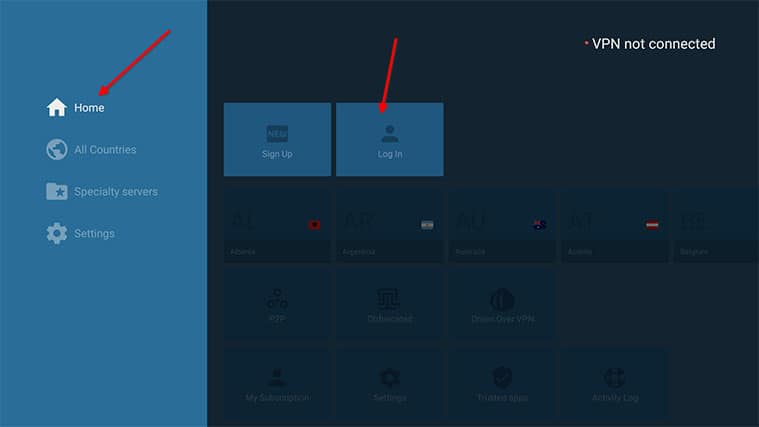
Step 1: Open FireStick NordVPN App
Open the app, input your credentials and click on the Login button.
Step 2: Input Your Username and Password
Step 3: Choose a Server and Click It
Now choose a NordVPN server, which will unlock the service you want to access.
And that is pretty much it. Now you have a working NordVPN on Amazon Fire TV Stick.
Conclusion
The process to install NordVPN on FireStick should only take around 10 minutes, ideally less. After you’ve completed the installation process, the NordVPN application for Amazon Fire TV Stick is modern enough to take care of the rest.
If you run into any problems while trying to install or access NordVPN on FireStick, please feel free to use the comments section below to let us know.
