
These days there are several tools that consumers used to enhance their entertainment experience. These tools are generally small in size to support the user’s experience. Since they’re small, they can be carried everywhere. With a TV and internet connection, consumers may enjoy a vast library of television content anywhere they go.
One of the most popular streaming tools is Amazon Firestick. It’s a small streaming device that doesn’t use any electrical source to work. The way you turn it on is by connecting it directly to a TV. As mentioned above, all you need is just a TV and internet connection.
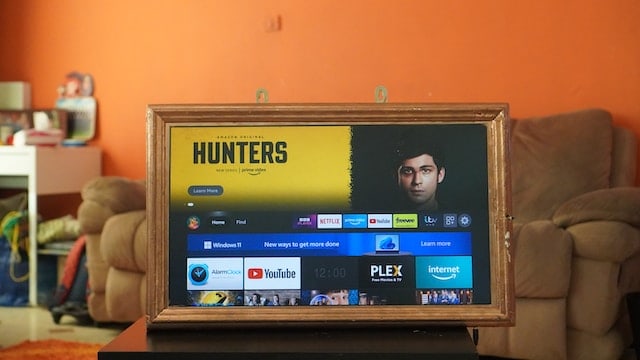
So, when you feel bored in the hotel because the TV only shows local programs, use the stick to display your streaming platforms. Whether it’s Netflix, HBO, or any other streaming service, you can always enjoy it with Amazon Firestick.
However, there’s one small trouble that you might experience when using this device. You see, the content you can see is tied to regions and licenses. So when you move somewhere away from home, you might find that the content is really limited.
Fortunately, you can pair the Amazon Firestick with VPN. That way, you can enjoy a wide array of content everywhere you go.
What Is Amazon Fire Stick?
Contents
As mentioned before, Amazon Fire Stick is a small device used for media streaming. When you connect this device to your TV, you can enjoy your favorite streaming platforms right away. It can be a solution if you don’t have a SmartTV.
Without the app installation, you can now enjoy Netflix, Amazon Prime, HBO, and other popular streaming services on just this one device.
If you want to see stuff like news, live shows, and other conventional television programs, you can also install apps directly to the Firestick. So, you may also enjoy watching Sling TV, YouTube TV, and more by using this device.
Then Why Use VPN?
If all the popular streaming services are there, then what’s the reason to install a VPN? The answer would be the content itself. When you access Netflix in the US and UK, you may notice that the content is different. It’s because the platform displays the content based on location.
The VPN opens up the opportunity to enjoy content from all over the world. So if your country suddenly limits Netflix content, you can use VPN to bypass the restriction. Moreover, you can even use the VPN to explore new content in other countries.
Since it’s really easy to change serves in VPN, you may also easily watch different shows. Sound neat, right? So if you really want to enjoy a vast option of content on streaming platforms, better use a VPN. But first, you need first to download VPN and install it. That way, you can now enjoy the full features of a VPN after the proper installation.
Other than that, the VPN is also helpful to avoid bandwidth throttling. Sometimes, your ISP might randomly throttle the internet bandwidth, causing some spikes and resulting in lags when streaming. Surely, this condition will worsen the streaming experience.
But, if your bandwidth is indeed limited because of so many devices using the same network, then the problem can’t be solved with only having a VPN. Instead, you have other choices here, like upgrading your internet package to get more bandwidth.
Installing VPN to Amazon FireStick
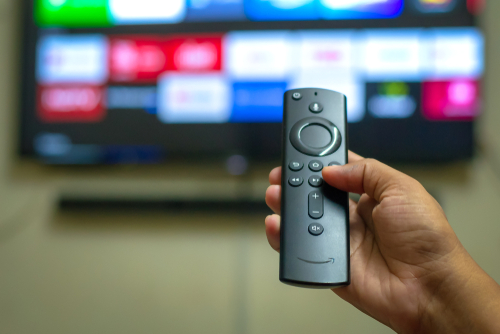
The VPN installation on a streaming service device like FireStick may provide two methods users can choose: using a VPN router or downloading a VPN app directly through the FireStick. The outcome will be the same.
Before doing any of the steps below, you have to make sure that the Firestick has been installed properly. Make sure that at least it can display all the streaming platforms you’ve just installed.
Installing a VPN App
The first and most effective method we have here is to install the VPN app directly through the Firestick. The steps to do it are also quite simple:
- First, turn on your TV and go to Amazon App Store
- There, find the VPN app you want to use
- Download and install the app
- Make an account
- Now go to that VPN’s official page, and buy a subscription
- Back to the TV, open the VPN app, and enter using your credentials
- Now all you need to do is activate the VPN, and it’s done!
By doing the steps above, now you may stream using the VPN connection. But remember, it only applies to the TV as the real connection that’s used is coming from the router. If you wish to share the VPN connection to all devices at home, using a VPN router would be a smart move.
Using a VPN Router
As mentioned above, this is the solution if you want all your connected devices to use the same VPN connection. So, it’s not only the Firestick that uses it but all other devices that are connected to the router.
A VPN router is basically a router that supports a VPN connection. Yes, not all routers support it. You can still do firmware flashing, but it’s not an easy task to do.
Now if you want to enjoy content based on a different location, all you need is to switch the location through the Firestick. Here are the steps you need to do:
- First, log in to your Amazon account
- Select Account, and then select Content & Devices
- From there, click the Preferences tab, and choose the settings to change Country/Region
- After choosing the country, select the Change button
- To apply the settings, you need to restart the TV
- Check the streaming platforms to check whether it’s working or not.
And that’s all you need to do to use VPN to Amazon Firestick. By using the VPN, you may have the opportunity to enjoy more content in your area. You’re basically not restricted by region anymore. So no matter what you are, you can always enjoy your favorite shows.
